
Recap of the previous chapter: State recording
- You learned how to record and restore actions through State.
- You became comfortable using the methods and events related to State.
In this chapter you will learn
- About the Five SDK event system.
- How to obtain the 3D position of a point.
Preparation
Let's create a new directory (src/4.points-in-3d) along with the corresponding html file and jsx or tsx file. Carrying over the State code from the previous chapter would be too cumbersome, so we will build on top of the contents of the Displaying a 3D Space chapter.
<!DOCTYPE html>
<html lang="en">
  <head>
    <meta charset="UTF-8" />
    <link rel="icon" href="data:;base64,iVBORw0KGgo=" />
    <meta name="viewport" content="width=device-width, initial-scale=1.0" />
    <title>Points in 3d</title>
    <link
      href="https://cdn.jsdelivr.net/npm/bootstrap@5.1.1/dist/css/bootstrap.min.css"
      rel="stylesheet"
      crossorigin="anonymous"
    />
    <link
      href="https://cdn.jsdelivr.net/npm/bootstrap-icons@1.5.0/font/bootstrap-icons.css"
      rel="stylesheet"
    />
    <style>
      * {
        margin: 0;
        padding: 0;
      }

      html,
      body,
      #app {
        width: 100%;
        height: 100%;
        overflow: hidden;
      }
    </style>
  </head>

  <body>
    <div id="app"></div>
    <script type="module" src="./index"></script>
  </body>
</html>import { ref, onBeforeUnmount } from "vue";
function useWindowDimensions() {
const width = ref(window.innerWidth);
const height = ref(window.innerHeight);
const listener = () => {
width.value = window.innerWidth;
height.value = window.innerHeight;
};
window.addEventListener("resize", listener, false);
onBeforeUnmount(() => {
window.removeEventListener("resize", listener, false);
});
return { width, height };
}
export { useWindowDimensions };<template>
<nav class="navbar fixed-bottom navbar-light bg-light">
<div class="container-fluid justify-content-center">
<div class="btn-group">
<button
:class="
state.mode == 'Panorama'
? 'btn btn-primary active'
: 'btn btn-primary'
"
@click="() => setState({ mode: Five.Mode.Panorama })"
>
Panorama Roaming
</button>
<button
:class="
state.mode == 'Panorama'
? 'btn btn-primary'
: 'btn btn-primary active'
"
@click="() => setState({ mode: Five.Mode.Floorplan })"
>
Space Overview
</button>
</div>
</div>
</nav>
</template>
<script setup>
import { useFiveCurrentState } from "@realsee/five/vue";
import { Five } from "@realsee/five";
const [state, setState] = useFiveCurrentState();
</script><template>
<FiveProvider :work="work">
<FiveCanvas :width="width" :height="height" />
<ModeController />
</FiveProvider>
</template>
<script setup>
import { FiveProvider, FiveCanvas } from "@realsee/five/vue";
import { parseWork } from "@realsee/five";
import { ref } from "vue";
import { useWindowDimensions } from "./useWindowDimensions";
import ModeController from "./ModeController.vue";
const work = ref();
const workURL =
"https://vr-public.realsee-cdn.cn/release/static/image/release/five/work-sample/07bdc58f413bc5494f05c7cbb5cbdce4/work.json";
fetch(workURL)
.then((response) => response.text())
.then((text) => (work.value = parseWork(text)));
const { width, height } = useWindowDimensions();
</script>import { createApp, h } from "vue";
import App from "./App.vue";
createApp(App).mount("#app");import { ref, onBeforeUnmount } from "vue";
function useWindowDimensions() {
const width = ref<number>(window.innerWidth);
const height = ref<number>(window.innerHeight);
const listener = () => {
width.value = window.innerWidth;
height.value = window.innerHeight;
};
window.addEventListener("resize", listener, false);
onBeforeUnmount(() => {
window.removeEventListener("resize", listener, false);
});
return { width, height };
}
export { useWindowDimensions };<template>
<nav class="navbar fixed-bottom navbar-light bg-light">
<div class="container-fluid justify-content-center">
<div class="btn-group">
<button
:class="
state.mode == 'Panorama'
? 'btn btn-primary active'
: 'btn btn-primary'
"
@click="() => setState({ mode: Five.Mode.Panorama })"
>
Panorama Roaming
</button>
<button
:class="
state.mode == 'Panorama'
? 'btn btn-primary'
: 'btn btn-primary active'
"
@click="() => setState({ mode: Five.Mode.Floorplan })"
>
Space Overview
</button>
</div>
</div>
</nav>
</template>
<script setup lang="ts">
import { useFiveCurrentState } from "@realsee/five/vue";
import { Five } from "@realsee/five";
const [state, setState] = useFiveCurrentState();
</script><template>
<FiveProvider :work="work">
<FiveCanvas :width="width" :height="height" />
<ModeController />
</FiveProvider>
</template>
<script setup lang="ts">
import { FiveProvider, FiveCanvas } from "@realsee/five/vue";
import { parseWork } from "@realsee/five";
import { ref } from "vue";
import { useWindowDimensions } from "./useWindowDimensions";
import ModeController from "./ModeController.vue";
const work = ref();
const workURL =
"https://vr-public.realsee-cdn.cn/release/static/image/release/five/work-sample/07bdc58f413bc5494f05c7cbb5cbdce4/work.json";
fetch(workURL)
.then((response) => response.text())
.then((text) => (work.value = parseWork(text)));
const { width, height } = useWindowDimensions();
</script>import { createApp, h } from "vue";
import App from "./App.vue";
createApp(App).mount("#app");Start the dev server with npm run dev, then navigate to the current page at "http://localhost:3000/src/4.points-in-3d/index.html".
Info
Please check your console. The port number may change depending on your configuration and which ports are currently in use, so rely on what the console prints. If you use a different build tool, start the server according to that tool's requirements.
The event system
When you tap on the screen, the default behavior of Five SDK is to select the most suitable observer near the tapped position and move there. This is what most users do, much like how browsers mostly treat the anchor tag as a link to navigate to. This is the built-in tapGesture event of Five SDK.
Built-in events
Five SDK provides the following built-in events:
- tapGesture: a left mouse-button click or a finger tap. The default behavior is to move to a point.
- panGesture: holding the mouse button and dragging, or dragging a finger across the screen. Rotates the camera (in Topview it pans the camera).
- pinchGesture: a two-finger pinch gesture. The default behavior is to change the camera's field of view.
- mouseWheel: the mouse wheel. The default behavior is to change the camera's field of view.
- gesture: any of the events above.
Preventing the default behavior
Just like a browser's handling of an anchor tag, every event can have its default behavior prevented. You only need to listen for the event prefixed with wants and return false in the callback. For example, to prevent the default point-movement behavior of tapGesture, you can do the following.
useFiveEventCallback("wantsTapGesture", () => {
  // highlight-start
  // Prevent tapGesture from firing
  return false;
  // highlight-end
});
For the detailed API of each event, see the reference documentation.
Getting coordinates from tapGesture
We'll build a simple feature that marks the 3D position tapped on the canvas.
To avoid conflicting with the point-movement feature, we'll use a
Switchbutton to control whether marking mode is enabled.
Adding dependencies at the top
This chapter is a good place to introduce three.js. three.js is a 3D graphics library, and the Five SDK uses its math library and renderer. This chapter touches on two parts of three.js, which we'll explain here. You don't need to fully understand three.js; a few notes will be enough.
- `THREE.Vector3`: you can simply think of it as a
{ x: number, y: number, z: number }struct, with some extra math methods added (we won't use the math methods this time, we only record xyz). - `THREE.Raycaster`: the ray-casting class. You can simply understand it as: a single point on the screen corresponds to a ray in 3D space.
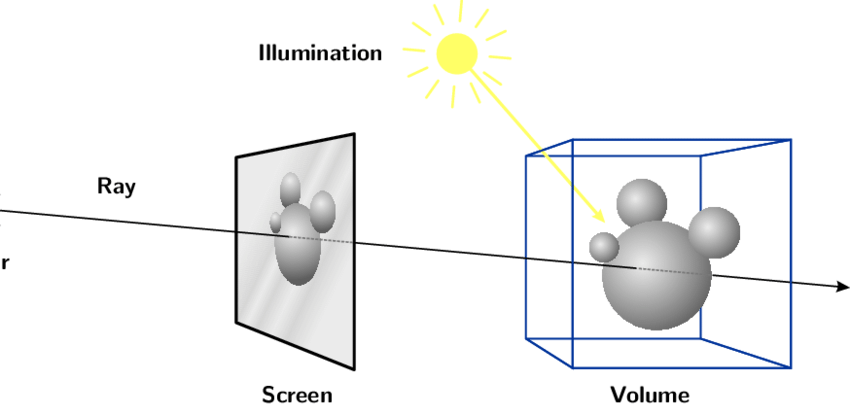
Rays have many uses. For example, by testing the intersection between a ray and the model, you can determine whether an object is selected.
Writing the MarkController component
- Add a MarkController file to write the component in.
- We use the active Vue Ref reactivity API together with v-model to control whether the app is currently in marking mode.
- The first parameter of
tapGestureis araycaster. ThroughmodelIntersectRaycasteryou can obtain the focus informationintersect, andintersect.pointis the coordinate of the intersection. - We use a
marksVue Ref to store all intersection points, and to implement collecting and removing them.
<template>
  <div class="card position-fixed m-2 top-0 start-0">
    <div class="form-check form-switch m-2">
      <input class="form-check-input" type="checkbox" v-model="isSwitch" />
      <label class="form-check-label" for="flexSwitchCheckDefault">Mark</label>
    </div>
    <div class="js-marks" v-if="marks.length > 0">
      <p v-for="(v3, index) in marks" calss="badge bg-primary d-block m-2">
        <span
          >x={{ v3.x.toFixed(2) }} y={{ v3.y.toFixed(2) }} z={{
            v3.z.toFixed(2)
          }}</span
        >
        <i
          class="bi bi-x-circle ms-2"
          @click="
            () => {
              removeMark(index);
            }
          "
        ></i>
      </p>
    </div>
  </div>
</template>
<script setup>
import {
  useFiveEventCallback,
  useFiveModelIntersectRaycaster,
} from "@realsee/five/vue";
import { Raycaster } from "three";
import { ref } from "vue";
const marks = ref([]);
const isSwitch = ref(false);
const raycasterRef = ref(new Raycaster());
const fiveModelIntersectRaycaster = useFiveModelIntersectRaycaster();
const intersect = fiveModelIntersectRaycaster(raycasterRef);

useFiveEventCallback("wantsTapGesture", (raycaster, tapPosition) => {
  if (isSwitch.value) {
    raycasterRef.value = raycaster;
    if (intersect.value[0]?.point) marks.value.push(intersect.value[0]?.point);
    return false;
  }
});

const removeMark = (index) => {
  marks.value.splice(index, 1);
};
</script><template>
<div class="card position-fixed m-2 top-0 start-0">
<div class="form-check form-switch m-2">
<input class="form-check-input" type="checkbox" v-model="isSwitch" />
<label class="form-check-label" for="flexSwitchCheckDefault">Mark</label>
</div>
<div class="js-marks" v-if="marks.length > 0">
<p v-for="(v3, index) in marks" calss="badge bg-primary d-block m-2">
<span
>x={{ v3.x.toFixed(2) }} y={{ v3.y.toFixed(2) }} z={{
v3.z.toFixed(2)
}}</span
>
<i
class="bi bi-x-circle ms-2"
@click="
() => {
removeMark(index);
}
"
></i>
</p>
</div>
</div>
</template>
<script setup lang="ts">
import {
useFiveEventCallback,
useFiveModelIntersectRaycaster,
} from "@realsee/five/vue";
import { Raycaster } from "three";
import { ref } from "vue";
const marks = ref<THREE.Vector3[]>([]);
const isSwitch = ref(false);
const raycasterRef = ref<Raycaster>(new Raycaster());
const fiveModelIntersectRaycaster = useFiveModelIntersectRaycaster();
const intersect = fiveModelIntersectRaycaster(raycasterRef);
useFiveEventCallback("wantsTapGesture", (raycaster, tapPosition) => {
if (isSwitch.value) {
raycasterRef.value = raycaster;
if (intersect.value[0]?.point) marks.value.push(intersect.value[0]?.point);
return false;
}
});
const removeMark = (index: number) => {
marks.value.splice(index, 1);
};
</script>Using the mark component
Insert it into the FiveProvider of the App file.
<template>
  <FiveProvider :work="work">
    <FiveCanvas :width="width" :height="height" />
    <ModeController />
    // highlight-start
    <MarkController />
    // highlight-end
  </FiveProvider>
</template>

<script setup>
import { FiveProvider, FiveCanvas } from "@realsee/five/vue";
import { parseWork } from "@realsee/five";
import { ref } from "vue";
import { useWindowDimensions } from "./useWindowDimensions";
import ModeController from "./ModeController.vue";
// highlight-start
import MarkController from "./MarkController.vue";
// highlight-end

const work = ref();
const workURL =
  "https://vr-public.realsee-cdn.cn/release/static/image/release/five/work-sample/07bdc58f413bc5494f05c7cbb5cbdce4/work.json";

fetch(workURL)
  .then((response) => response.text())
  .then((text) => (work.value = parseWork(text)));
const { width, height } = useWindowDimensions();
</script><template>
<FiveProvider :work="work">
<FiveCanvas :width="width" :height="height" />
<ModeController />
// highlight-start
<MarkController />
// highlight-end
</FiveProvider>
</template>
<script setup lang="ts">
import { FiveProvider, FiveCanvas } from "@realsee/five/vue";
import { parseWork, Work } from "@realsee/five";
import { ref } from "vue";
import { useWindowDimensions } from "./useWindowDimensions";
import ModeController from "./ModeController.vue";
// highlight-start
import MarkController from "./MarkController.vue";
// highlight-end
const work = ref<Work>();
const workURL =
"https://vr-public.realsee-cdn.cn/release/static/image/release/five/work-sample/07bdc58f413bc5494f05c7cbb5cbdce4/work.json";
fetch(workURL)
.then((response) => response.text())
.then((text) => (work.value = parseWork(text)));
const { width, height } = useWindowDimensions();
</script>Go back to your browser and take a look. You'll find a toggle switch appears in the top-left corner of the page. Turn the switch on, click inside the canvas, and the coordinates of the clicked position will be output.
Nicely done, you've understood and obtained 3D coordinates in one go. 🥳
What you'll learn in the next chapter
In the next chapter we'll implement a spatial tag feature, don't miss it.