
Tip
This guide does not cover Live voice capabilities for now.
Choose the example that matches your actual development framework.
Framework-free Example
This guide assumes you are building your application with native js | ts.
Create a Live instance
import { createLive, LiveState } from "@realsee/live";

const live = createLive({
  __debug__: true, // In this mode, logs are printed to the terminal to make debugging easier. We recommend enabling it during development.
});
Two parameters are configured when creating the live instance:
- url: The URL for connecting to the WebSocket service. Supply it either when creating the Live instance or later through
live.connect({ url }). - getTicket(): An async callback whose return value is the Live ticket. Supply it with the URL and obtain the ticket through your backend.
Info
For more parameter options of the createLive() function, refer to the `@realsee/live@0.7.6` LiveOptions API.
Connect to Live
After obtaining the live instance, call the connect() method at an appropriate time to establish the Live connection.
live.on("stateChange", (state) => {
  if (state === LiveState.OPEN) {
    console.log("Successfully joined the Live session");
  }
});

const result = await live.connect({
  url: "wss://ws-access.realsee.com/***/?=xxx",
  getTicket: async () => requestTicket(),
});
if (result instanceof Error) throw result;
Confirming a successful connection
Tip
LiveState.OPEN is the connection-ready signal. To restore or apply synchronized state, listen for the public keyframes event. The older readyKeyframeSync event is deprecated in @realsee/live@0.7.6.
live.on("keyframes", (keyframes) => {
  if (keyframes.FiveState) {
    setDefaultFiveState(keyframes.FiveState);
  }
});
Tip
You can also quickly check whether the Live session connected successfully from the console.
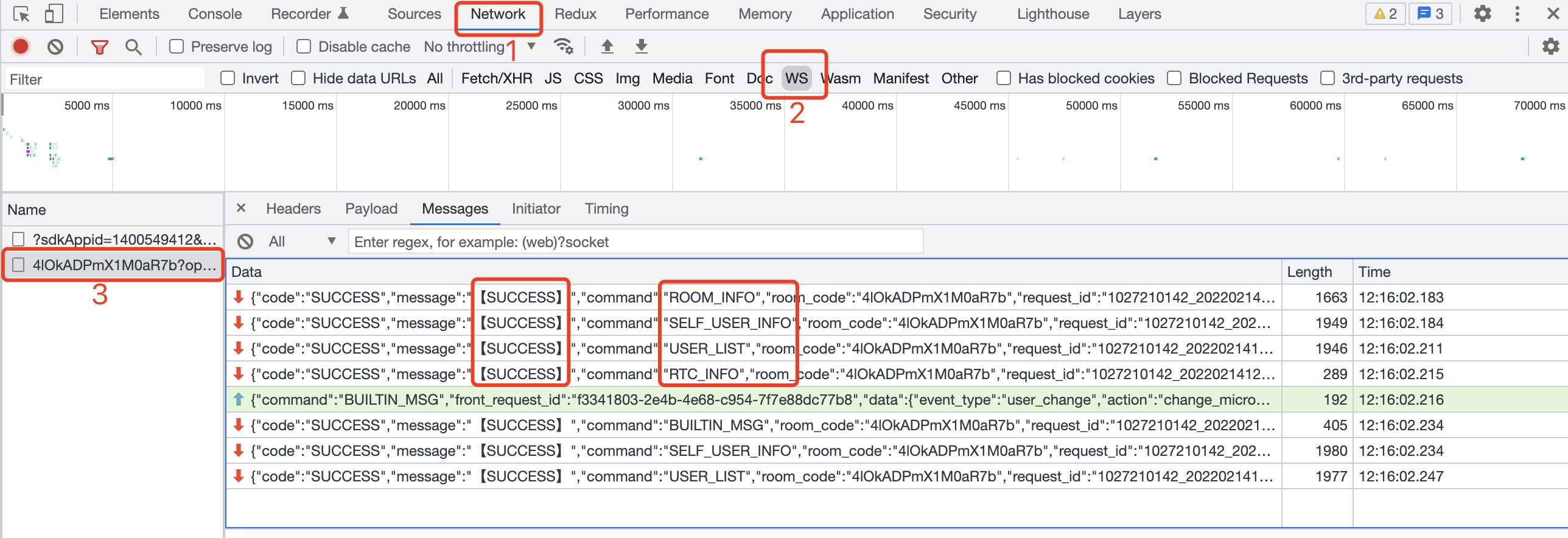
As shown above, if the code and message of all four commands — ROOM_INFO, SELF_USER_INFO, USER_LIST, and RTC_INFO — are SUCCESS, the Live channel has connected successfully.
React Example
This guide assumes you are building your application with the React framework.
Create a Live instance
Info
Create a new file LiveReact.js | LiveReact.ts and create your own LiveReact instance.
import { createLiveReact } from "@realsee/live";

const LiveReact = createLiveReact({
  __debug__: true,
});

export default LiveReact;

/** If you dislike the `LiveReact.LiveProvider` coding style, you can "expose" the functions you need */
// export const LiveProvider = liveReactInstance.LiveProvider
// export const useConnect = liveReactInstance.useConnect
// export const useKeyframe = liveReactInstance.useKeyframe
// export ..import { createLiveReact } from "@realsee/live";
import { Mode } from "@realsee/five";
/** Define the structure of the frame data snapshot */
interface Snapshot {
/** Using the Five state snapshot as an example */
FiveState: {
panoIndex: number;
fov: number;
mode: Mode;
latitude: number;
longitude: number;
};
}
/** Create an instance via the `createLiveReact()` function */
const LiveReact = createLiveReact<Snapshot>({
__debug__: true,
});
export default LiveReact;
/** If you dislike the `LiveReact.LiveProvider` coding style, you can "expose" the functions you need */
// export const LiveProvider = LiveReact.LiveProvider
// export const useConnect = LiveReact.useConnect
// export const useKeyframe = LiveReact.useKeyframe
// export ..Integrate the context
Info
Use LiveProvider to integrate the live instance into the React Context.
ReactDOM.render(
  <LiveProvider>
    <App />
  </LiveProvider>,
  document.getElementById("root") // Change this to your container
);ReactDOM.render(
<LiveProvider>
<App />
</LiveProvider>,
document.getElementById("root") // Change this to your container
);Connect to Live
Info
Use the useConnect hook to establish the Live connection.
import { useConnect } from "./LiveReact";

function ConnectBtn() {
  // highlight-start
  const connect = useConnect();
  //  highlight-end

  const handleConnect = async () => {
    // highlight-start
    const result = await connect({
      force: true,
      url: wsUrl, // The ws connection is obtained from your backend
      getTicket: async () => {
        // Live ticket callback
        return requestTicket({ roomCode, userId, userRole });
      },
    });
    if (result instanceof Error) throw result;
    //  highlight-end
  };

  return <button onClick={() => handleConnect()}>Live connection example button</button>;
}

const requestTicket = async ({ roomCode, userId, userRole }) => {
  // Call your backend API and return the ticket
  return ""; //  string
};import { useConnect } from "./LiveReact";
function ConnectBtn() {
// highlight-start
const connect = useConnect();
// highlight-end
const handleConnect = async () => {
// highlight-start
const result = await connect({
force: true,
url: wsUrl, // The ws connection is obtained from your backend
getTicket: async () => {
// Live ticket callback
return requestTicket({ roomCode, userId, userRole });
},
});
if (result instanceof Error) throw result;
// highlight-end
};
return <button onClick={() => handleConnect()}>Live connection example button</button>;
}
const requestTicket = async ({
roomCode,
userId,
userRole,
}: {
roomCode: string;
userId: string;
userRole: string;
}) => {
// Call your backend API and return the ticket
return ""; // string
};Confirming a successful connection
Info
Use useLiveState to confirm the connection is open, and useLiveEventCallback("keyframes", ...) to restore synchronized state. The older readyKeyframeSync event is deprecated in @realsee/live@0.7.6.
import { useEffect } from "react";
import { LiveState } from "@realsee/live";
import LiveReact from "./LiveReact";

const { useLiveEventCallback, useLiveState } = LiveReact;

function LiveConnectionStatus() {
  const liveState = useLiveState();

  useEffect(() => {
    if (liveState === LiveState.OPEN) {
      console.log("Successfully joined the Live session");
    }
  }, [liveState]);

  useLiveEventCallback("keyframes", (keyframes) => {
    if (keyframes.FiveState) {
      setDefaultFiveState(keyframes.FiveState);
    }
  });

  return null;
}
Tip
You can also quickly check whether the Live session connected successfully from the console.
As shown above, if the code and message of all four commands — ROOM_INFO, SELF_USER_INFO, USER_LIST, and RTC_INFO — are SUCCESS, the Live channel has connected successfully.