
Info
Backed by the full-duplex communication of long-lived WebSocket connections, Live lets users across multiple clients join the same session and stay in sync. Within its messaging system, keyframe data is the payload that carries this synchronization. This chapter explains how to keep VR views in sync. Before you start building synchronization, you need at least two co-viewing roles: a host and a viewer. We also assume that you already know how to read and set Five SDK state.
Framework-free Example
five.on("stateChange", (state, userAction) => {
  // Listen for changes to the local Five state
  if (userAction) {
    // Send only Five state changes triggered by user actions
    // Send the local keyframe data (Five State)
    live.sendKeyframe("FiveState", state);
  }
});

// Receive remote keyframe data (Five State)
live.keyframes.on("FiveState", (newState, prevState) => {
  // Use the latest `newState` to update the local UI state
  five.setState(newState, false, false); // Set userAction to false to avoid an infinite sync loop.
});five.on("stateChange", (state, userAction) => {
// Listen for changes to the local Five state
if (userAction) {
// Send only Five state changes triggered by user actions
// Send the local keyframe data (Five State)
live.sendKeyframe("FiveState", state);
}
});
// Receive remote keyframe data (Five State)
live.keyframes.on("FiveState", (newState, prevState) => {
// Use the latest `newState` to update the local UI state
five.setState(newState, false, false); // Set userAction to false to avoid an infinite sync loop.
});Tip
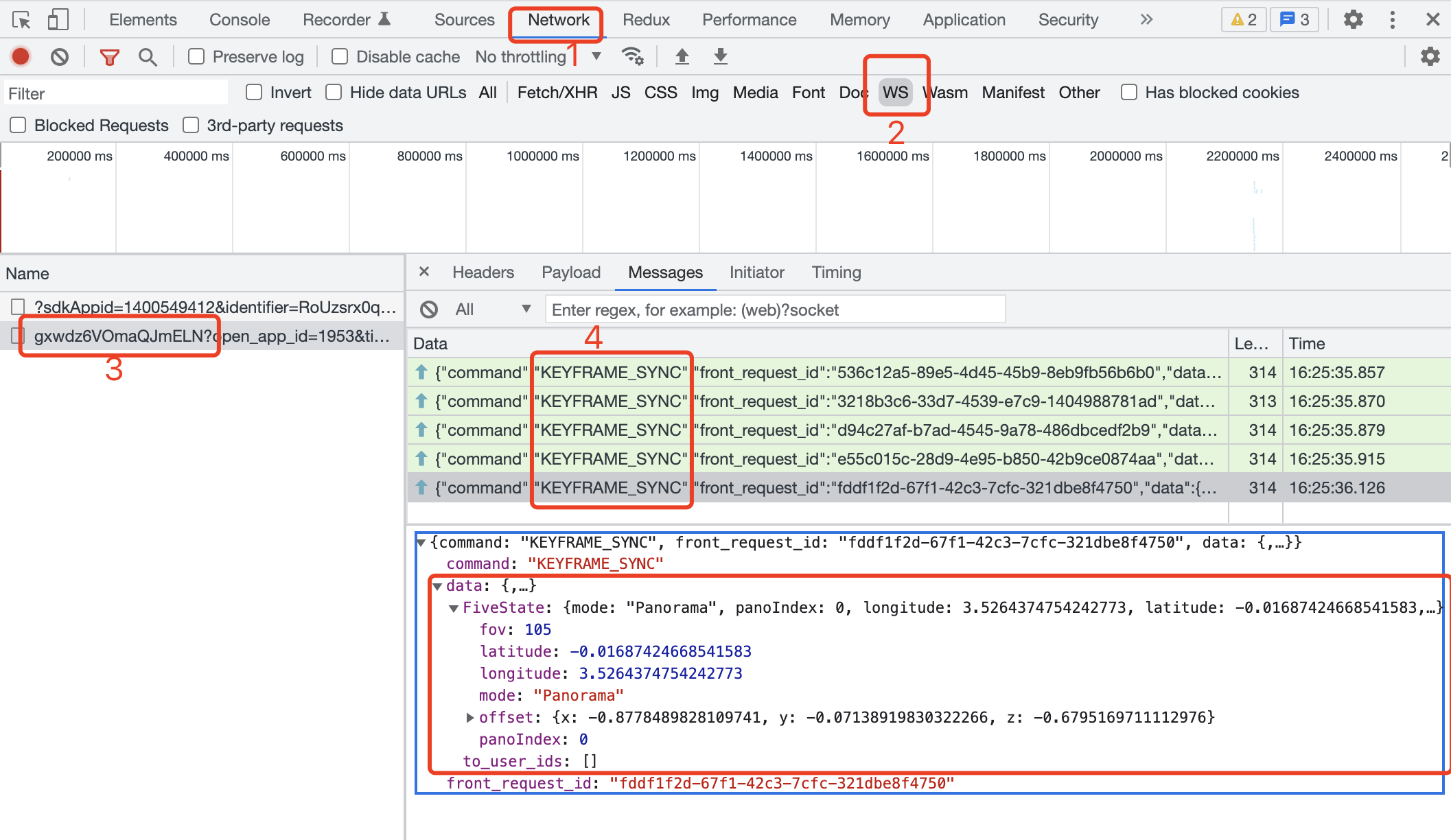
Operate the VR view as the host, then inspect the ws traffic in the Network tab of the host console.
As the VR view changes on the host's screen, the ws Messages continuously emit KEYFRAME_SYNC commands. Click a command to view the detailed payload that was transmitted.
Tip
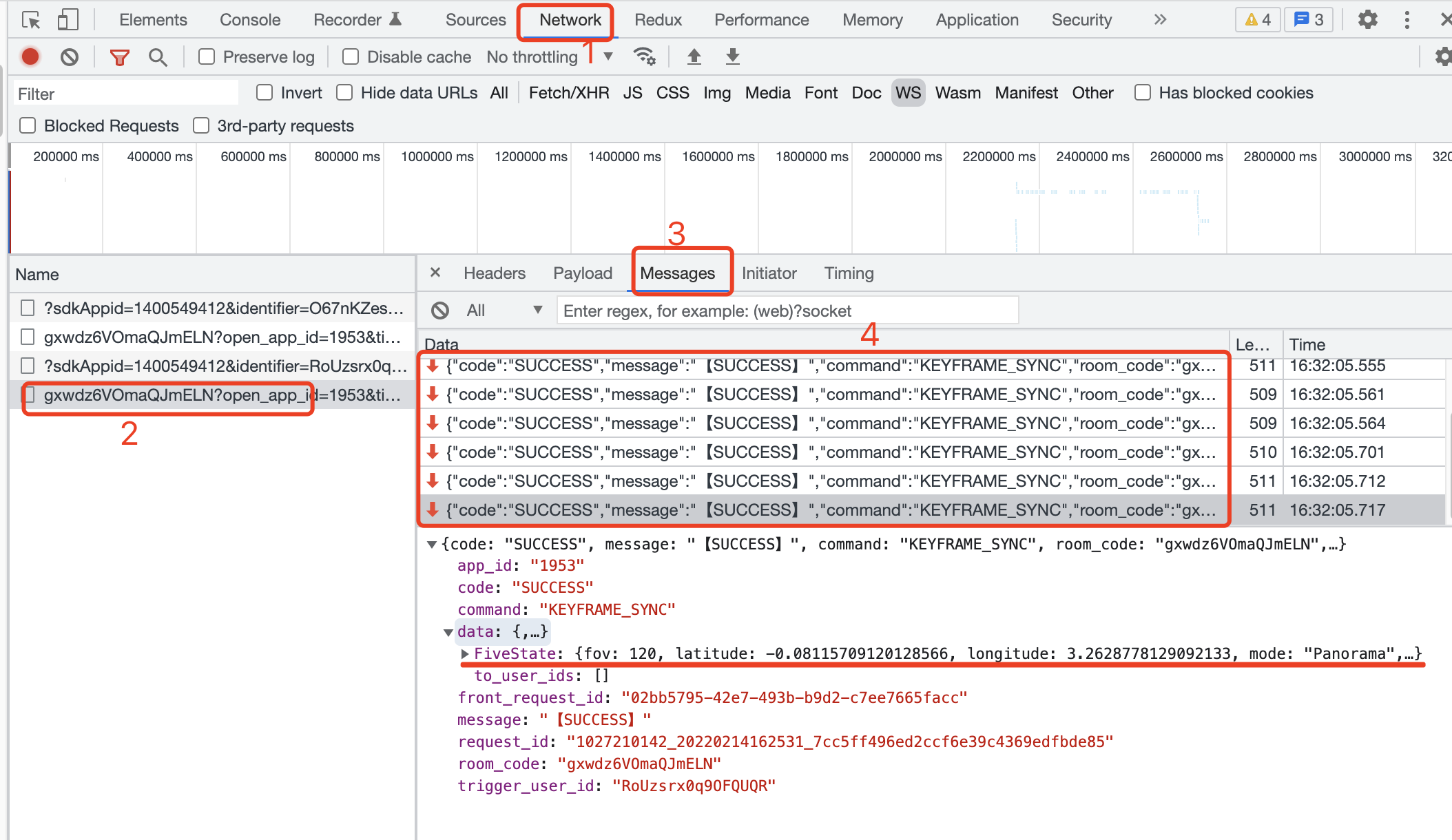
At the same time, inspect the viewer console and find the ws traffic in the Network tab.
As the host operates the VR view, the ws Messages receive KEYFRAME_SYNC commands. Click a command to view the detailed payload that was received.
Tip
Outgoing ws messages are shown as green arrows pointing up, and incoming ws messages are shown as red arrows pointing down.
React Example
import LiveReact from "LiveReact";
import { useFiveState } from "@realsee/five/react";

const { useKeyframe } = LiveReact;

function Test() {
  const [fiveState, setFiveState] = useFiveState();
  const [fiveStateKeyframe, setFiveStateKeyframe] = useKeyframe("FiveState");

  // Listen for Five state changes and send keyframe data
  useFiveEventCallback("stateChange", (state, userAction) => {
    // Send only the state changes triggered by the user
    if (userAction) {
      setFiveStateKeyframe(state);
    }
  });

  // Receive keyframe data
  /*
   * In `const [fiveStateKeyframe, setFiveStateKeyframe] = useKeyframe('FiveState')`,
   * the useKeyframe() hook already keeps the real-time keyframe data updated, so
   * `fiveStateKeyframe` is always the latest Five state keyframe.
   * Therefore, receiving keyframe data only requires diffing the value of the
   * first parameter returned by the useKeyframe() hook and then updating the local UI.
   * Here you only need to watch for changes to `fiveStateKeyframe` and then update the Five state.
   * */

  React.useEffect(() => {
    // Reaching this point means `fiveStateKeyframe` has changed.
    setFiveState(fiveStateKeyframe, false, false); // Set userAction to false for the synced state change to avoid an infinite sync loop.
  }, [fiveStateKeyframe]);

  return null;
}import LiveReact from "LiveReact";
import { useFiveState } from "@realsee/five/react";
const { useKeyframe } = LiveReact;
function Test() {
const [fiveState, setFiveState] = useFiveState();
const [fiveStateKeyframe, setFiveStateKeyframe] = useKeyframe("FiveState");
// Listen for Five state changes and send keyframe data
useFiveEventCallback("stateChange", (state, userAction) => {
// Send only the state changes triggered by the user
if (userAction) {
setFiveStateKeyframe(state);
}
});
// Receive keyframe data
/*
* In `const [fiveStateKeyframe, setFiveStateKeyframe] = useKeyframe('FiveState')`,
* the useKeyframe() hook already keeps the real-time keyframe data updated, so
* `fiveStateKeyframe` is always the latest Five state keyframe.
* Therefore, receiving keyframe data only requires diffing the value of the
* first parameter returned by the useKeyframe() hook and then updating the local UI.
* Here you only need to watch for changes to `fiveStateKeyframe` and then update the Five state.
* */
React.useEffect(() => {
// Reaching this point means `fiveStateKeyframe` has changed.
setFiveState(fiveStateKeyframe, false, false); // Set userAction to false for the synced state change to avoid an infinite sync loop.
}, [fiveStateKeyframe]);
return null;
}Tip
Operate the VR view as the host, then inspect the ws traffic in the Network tab of the host console.
As the VR view changes on the host's screen, the ws Messages continuously emit KEYFRAME_SYNC commands. Click a command to view the detailed payload that was transmitted.
Tip
At the same time, inspect the viewer console and find the ws traffic in the Network tab.
As the host operates the VR view, the ws Messages receive KEYFRAME_SYNC commands. Click a command to view the detailed payload that was received.
Tip
Outgoing ws messages are shown as green arrows pointing up, and incoming ws messages are shown as red arrows pointing down.