
情報
Live は長時間の全二重 WebSocket 接続を使い、複数クライアントを同じセッションで同期します。メッセージでは キーフレームデータ が状態を運びます。ここでは VR 表示の同期を説明します。 ホストと視聴者の少なくとも 2 つの役割を準備してください。 Five SDK の状態取得・設定を理解していることを前提とします。
フレームワークなしの例
five.on("stateChange", (state, userAction) => {
  // Listen for changes to the local Five state
  if (userAction) {
    // Send only Five state changes triggered by user actions
    // Send the local keyframe data (Five State)
    live.sendKeyframe("FiveState", state);
  }
});

// Receive remote keyframe data (Five State)
live.keyframes.on("FiveState", (newState, prevState) => {
  // Use the latest `newState` to update the local UI state
  five.setState(newState, false, false); // Set userAction to false to avoid an infinite sync loop.
});five.on("stateChange", (state, userAction) => {
// Listen for changes to the local Five state
if (userAction) {
// Send only Five state changes triggered by user actions
// Send the local keyframe data (Five State)
live.sendKeyframe("FiveState", state);
}
});
// Receive remote keyframe data (Five State)
live.keyframes.on("FiveState", (newState, prevState) => {
// Use the latest `newState` to update the local UI state
five.setState(newState, false, false); // Set userAction to false to avoid an infinite sync loop.
});ヒント
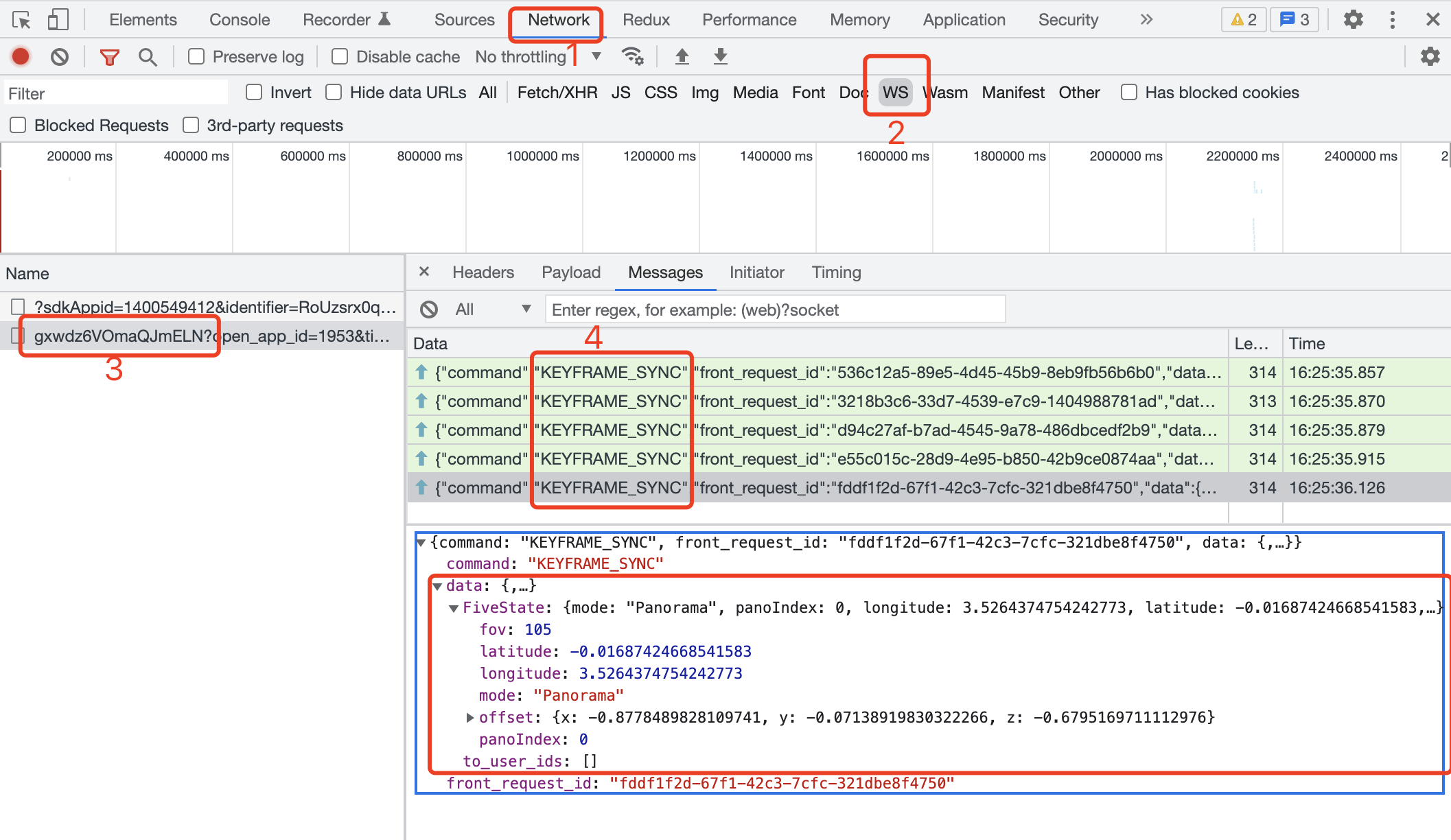
host で VR を操作し、コンソールの Network で ws 通信を確認します。
ホストの表示変更に伴い KEYFRAME_SYNC が継続して送信されます。命令を選び、送信データを確認できます。
ヒント
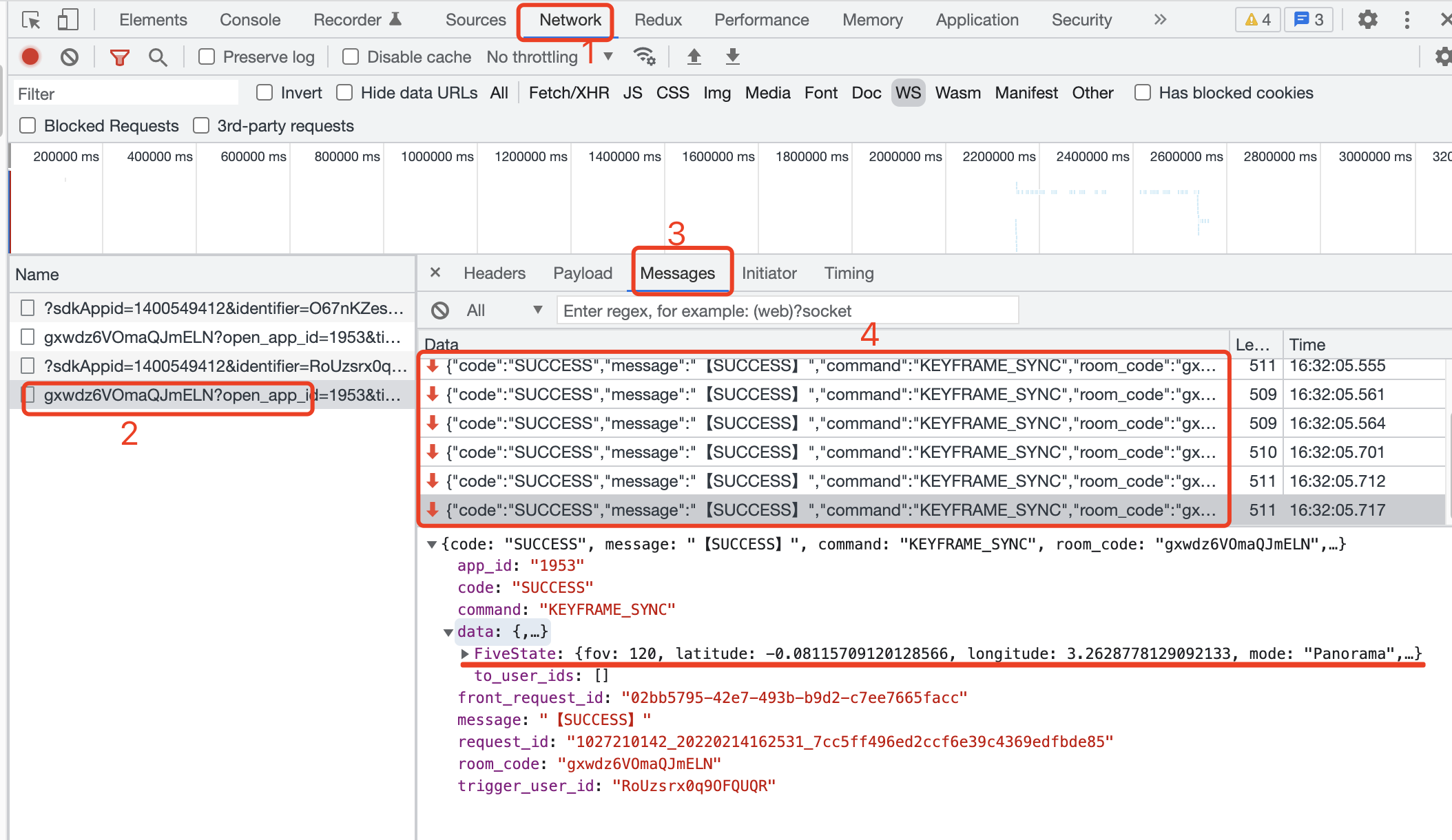
同時に viewer のコンソールで Network の ws 通信を確認します。
ホストの操作に伴い KEYFRAME_SYNC を受信します。命令を選んで受信データを確認できます。
ヒント
送信は緑の上向き矢印、受信は赤の下向き矢印で表示されます。
React のサンプル
import LiveReact from "LiveReact";
import { useFiveState } from "@realsee/five/react";

const { useKeyframe } = LiveReact;

function Test() {
  const [fiveState, setFiveState] = useFiveState();
  const [fiveStateKeyframe, setFiveStateKeyframe] = useKeyframe("FiveState");

  // Listen for Five state changes and send keyframe data
  useFiveEventCallback("stateChange", (state, userAction) => {
    // Send only the state changes triggered by the user
    if (userAction) {
      setFiveStateKeyframe(state);
    }
  });

  // Receive keyframe data
  /*
   * In `const [fiveStateKeyframe, setFiveStateKeyframe] = useKeyframe('FiveState')`,
   * the useKeyframe() hook already keeps the real-time keyframe data updated, so
   * `fiveStateKeyframe` is always the latest Five state keyframe.
   * Therefore, receiving keyframe data only requires diffing the value of the
   * first parameter returned by the useKeyframe() hook and then updating the local UI.
   * Here you only need to watch for changes to `fiveStateKeyframe` and then update the Five state.
   * */

  React.useEffect(() => {
    // Reaching this point means `fiveStateKeyframe` has changed.
    setFiveState(fiveStateKeyframe, false, false); // Set userAction to false for the synced state change to avoid an infinite sync loop.
  }, [fiveStateKeyframe]);

  return null;
}import LiveReact from "LiveReact";
import { useFiveState } from "@realsee/five/react";
const { useKeyframe } = LiveReact;
function Test() {
const [fiveState, setFiveState] = useFiveState();
const [fiveStateKeyframe, setFiveStateKeyframe] = useKeyframe("FiveState");
// Listen for Five state changes and send keyframe data
useFiveEventCallback("stateChange", (state, userAction) => {
// Send only the state changes triggered by the user
if (userAction) {
setFiveStateKeyframe(state);
}
});
// Receive keyframe data
/*
* In `const [fiveStateKeyframe, setFiveStateKeyframe] = useKeyframe('FiveState')`,
* the useKeyframe() hook already keeps the real-time keyframe data updated, so
* `fiveStateKeyframe` is always the latest Five state keyframe.
* Therefore, receiving keyframe data only requires diffing the value of the
* first parameter returned by the useKeyframe() hook and then updating the local UI.
* Here you only need to watch for changes to `fiveStateKeyframe` and then update the Five state.
* */
React.useEffect(() => {
// Reaching this point means `fiveStateKeyframe` has changed.
setFiveState(fiveStateKeyframe, false, false); // Set userAction to false for the synced state change to avoid an infinite sync loop.
}, [fiveStateKeyframe]);
return null;
}ヒント
host で VR を操作し、コンソールの Network で ws 通信を確認します。
ホストの表示変更に伴い KEYFRAME_SYNC が継続して送信されます。命令を選び、送信データを確認できます。
ヒント
同時に viewer のコンソールで Network の ws 通信を確認します。
ホストの操作に伴い KEYFRAME_SYNC を受信します。命令を選んで受信データを確認できます。
ヒント
送信は緑の上向き矢印、受信は赤の下向き矢印で表示されます。