# Live に接続する
対応フロントエンドから Live 共同閲覧セッションを作成し、参加します。
Canonical: https://developer.realsee.ai/ja/docs/live/get-started/live-connect
Source: https://developer.realsee.ai/ja/docs/live/get-started/live-connect.md
Language: ja
> **tip**
このガイドでは音声機能を扱いません。
**実際の開発フレームワークに合う例を選んでください。**
## フレームワークなしの例
**ネイティブの `js` | `ts` で開発する場合の例です。**
### 1. Live インスタンスを作成する
```js
import { createLive, LiveState } from "@realsee/live";
const live = createLive({
__debug__: true, // In this mode, logs are printed to the terminal to make debugging easier. We recommend enabling it during development.
});
```
**作成時に以下の 2 つを設定します:**
- **url**:WebSocket 接続先。生成時または `live.connect({ url })` で指定します。
- **getTicket()**:Live ticket を返す非同期コールバック。URL と共に指定し、ticket はバックエンドで取得します。
> **info**
追加の引数は [`@realsee/live@0.7.6` LiveOptions](https://unpkg.com/@realsee/live@0.7.6/docs/interfaces/LiveOptions.html) を参照してください。
### 2. Live に接続する
生成した `live` の `connect()` を適切な時点で呼び、接続を確立します。
```js
live.on("stateChange", (state) => {
if (state === LiveState.OPEN) {
console.log("Successfully joined the Live session");
}
});
const result = await live.connect({
url: "wss://ws-access.realsee.com/***/?=xxx",
getTicket: async () => requestTicket(),
});
if (result instanceof Error) throw result;
```
### 3. 接続成功を確認する
> **tip**
`LiveState.OPEN` が準備完了の状態です。同期状態を復元・適用するには `keyframes` を購読します。古い `readyKeyframeSync` は 0.7.6 で非推奨です。
```js
live.on("keyframes", (keyframes) => {
if (keyframes.FiveState) {
setDefaultFiveState(keyframes.FiveState);
}
});
```
> **tip**
コンソールでも接続成功を確認できます。
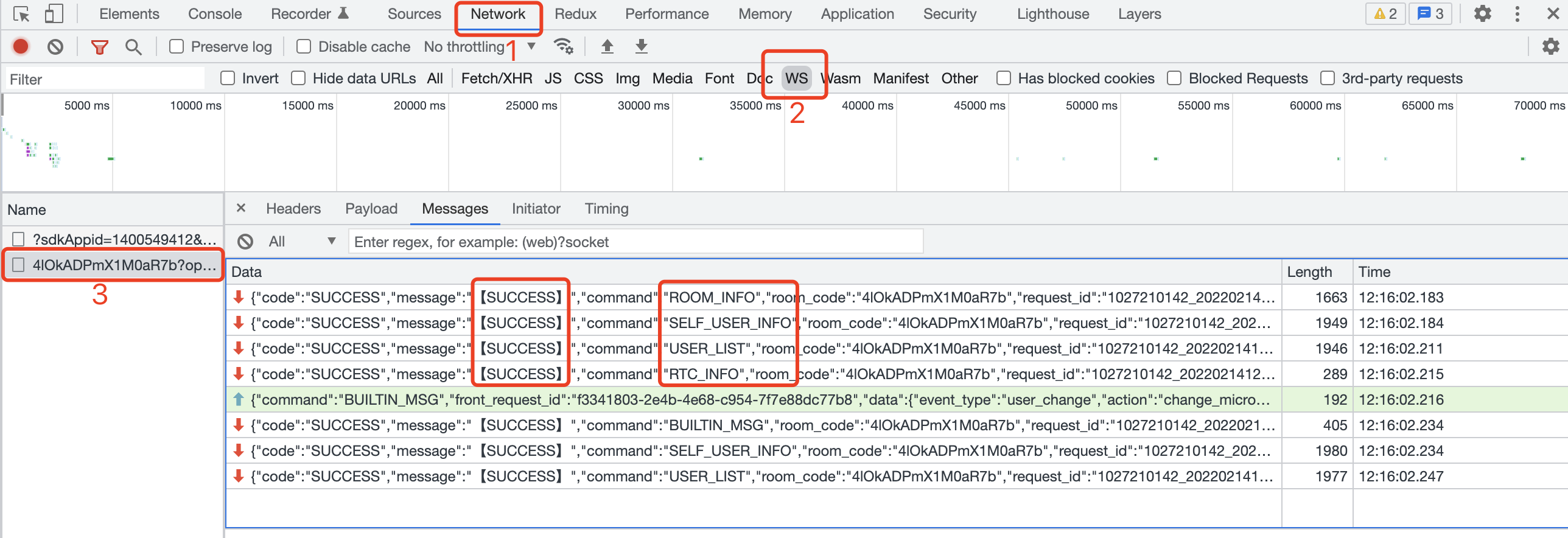
`ROOM_INFO`、`SELF_USER_INFO`、`USER_LIST`、`RTC_INFO` の 4 命令がすべて `SUCCESS` の場合、Live チャネルは接続成功です。
## React のサンプル
**React フレームワークで開発する場合の例です。**
### 1. Live インスタンスを作成する
> **info**
`LiveReact.js` | `LiveReact.ts` を作り、自分の LiveReact インスタンスを生成します。
**JavaScript**
```jsx title='LiveReact.js'
import { createLiveReact } from "@realsee/live";
const LiveReact = createLiveReact({
__debug__: true,
});
export default LiveReact;
/** If you dislike the `LiveReact.LiveProvider` coding style, you can "expose" the functions you need */
// export const LiveProvider = liveReactInstance.LiveProvider
// export const useConnect = liveReactInstance.useConnect
// export const useKeyframe = liveReactInstance.useKeyframe
// export ..
```
**TypeScript**
```tsx title='LiveReact.ts'
import { createLiveReact } from "@realsee/live";
import { Mode } from "@realsee/five";
/** Define the structure of the frame data snapshot */
interface Snapshot {
/** Using the Five state snapshot as an example */
FiveState: {
panoIndex: number;
fov: number;
mode: Mode;
latitude: number;
longitude: number;
};
}
/** Create an instance via the `createLiveReact()` function */
const LiveReact = createLiveReact({
__debug__: true,
});
export default LiveReact;
/** If you dislike the `LiveReact.LiveProvider` coding style, you can "expose" the functions you need */
// export const LiveProvider = LiveReact.LiveProvider
// export const useConnect = LiveReact.useConnect
// export const useKeyframe = LiveReact.useKeyframe
// export ..
```
### 2. コンテキストに組み込む
> **info**
`LiveProvider` で `live` を React の `Context` に組み込みます。
**JavaScript**
```jsx
ReactDOM.render(
,
document.getElementById("root") // Change this to your container
);
```
**TypeScript**
```tsx
ReactDOM.render(
,
document.getElementById("root") // Change this to your container
);
```
### 3. Live に接続する
> **info**
`useConnect` フックで接続します。
**JavaScript**
```jsx
import { useConnect } from "./LiveReact";
function ConnectBtn() {
// highlight-start
const connect = useConnect();
// highlight-end
const handleConnect = async () => {
// highlight-start
const result = await connect({
force: true,
url: wsUrl, // The ws connection is obtained from your backend
getTicket: async () => {
// Live ticket callback
return requestTicket({ roomCode, userId, userRole });
},
});
if (result instanceof Error) throw result;
// highlight-end
};
return ;
}
const requestTicket = async ({ roomCode, userId, userRole }) => {
// Call your backend API and return the ticket
return ""; // string
};
```
**TypeScript**
```tsx
import { useConnect } from "./LiveReact";
function ConnectBtn() {
// highlight-start
const connect = useConnect();
// highlight-end
const handleConnect = async () => {
// highlight-start
const result = await connect({
force: true,
url: wsUrl, // The ws connection is obtained from your backend
getTicket: async () => {
// Live ticket callback
return requestTicket({ roomCode, userId, userRole });
},
});
if (result instanceof Error) throw result;
// highlight-end
};
return ;
}
const requestTicket = async ({
roomCode,
userId,
userRole,
}: {
roomCode: string;
userId: string;
userRole: string;
}) => {
// Call your backend API and return the ticket
return ""; // string
};
```
### 4. 接続成功を確認する
> **info**
`useLiveState` で接続を確認し、`useLiveEventCallback("keyframes", ...)` で同期状態を復元します。古い `readyKeyframeSync` は 0.7.6 で非推奨です。
```jsx
import { useEffect } from "react";
import { LiveState } from "@realsee/live";
import LiveReact from "./LiveReact";
const { useLiveEventCallback, useLiveState } = LiveReact;
function LiveConnectionStatus() {
const liveState = useLiveState();
useEffect(() => {
if (liveState === LiveState.OPEN) {
console.log("Successfully joined the Live session");
}
}, [liveState]);
useLiveEventCallback("keyframes", (keyframes) => {
if (keyframes.FiveState) {
setDefaultFiveState(keyframes.FiveState);
}
});
return null;
}
```
> **tip**
コンソールでも接続成功を確認できます。

`ROOM_INFO`、`SELF_USER_INFO`、`USER_LIST`、`RTC_INFO` の 4 命令がすべて `SUCCESS` の場合、Live チャネルは接続成功です。